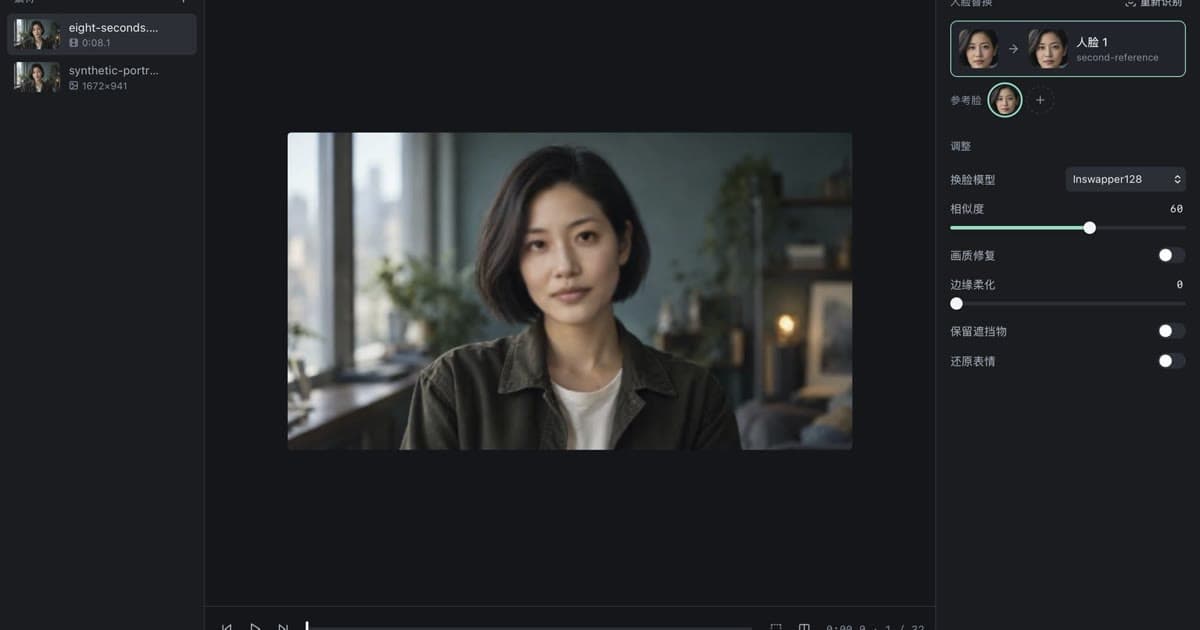
VisoMaster on Mac: Apple Silicon and Intel Setup Guide
Install and run VisoMaster Studio on a Mac: which DMG to pick, macOS 14, CoreML or CPU processing, first model download, data folders and logs.
VisoMaster Studio runs on Macs with macOS 14 or later. There are two DMGs: one for Apple Silicon (M-series), which can process with CoreML or the CPU, and a preview build for Intel Macs, which processes on the CPU. Both include the Python runtime and FFmpeg, so there is nothing to set up in a terminal, and your images and videos stay on your Mac.
This guide covers which build to pick, what happens on first launch, how processing runs on each kind of Mac, and where the app keeps its files. It describes VisoMaster Studio 0.3.0.
Which DMG to download
To check your chip, open the Apple menu and choose About This Mac. An Apple Silicon Mac lists a "Chip" such as Apple M1 or M3; an Intel Mac lists a "Processor" with an Intel name.
| Apple Silicon DMG | Intel DMG (preview) | |
|---|---|---|
| Macs | M-series | Intel |
| macOS | 14 or later | 14 or later |
| Distribution | Signed and notarized | Notarized |
| Processing | CoreML (Neural Engine and GPU) or CPU | CPU by default |
| Status | Release | Preview |
"Preview" means the Intel build is built and checked automatically but has not yet been tested widely on Intel hardware. Both DMGs come with the same purchase, which also covers the Windows builds.
Installing
- Download the DMG for your chip from the download page.
- Open the DMG and drag VisoMaster Studio into your Applications folder.
- Open the app from Applications or Launchpad.
Because both DMGs are notarized by Apple, macOS opens the app after its usual confirmation for software downloaded from the internet. You do not need to change security settings or run any commands. If the app does not open at all, check that you are on macOS 14 or later and that you downloaded the DMG that matches your chip. The installation guide has the full requirements for every platform.
First launch: downloading the base models
Models are not inside the DMG. On first launch the app downloads a base set of about 469 MB from the models' official sources: the RetinaFace face detector, the ArcFace recognition model used by Inswapper, and the Inswapper128 swap model. That is enough to detect faces and make a first swap.
- Each file is checked against a SHA-256 hash after download.
- If the connection drops, the download resumes from where it stopped instead of starting over.
- Other models (restorers, other swappers, masks, frame enhancers) download the first time you turn on a feature that needs them. The full catalog is about 19 GB.
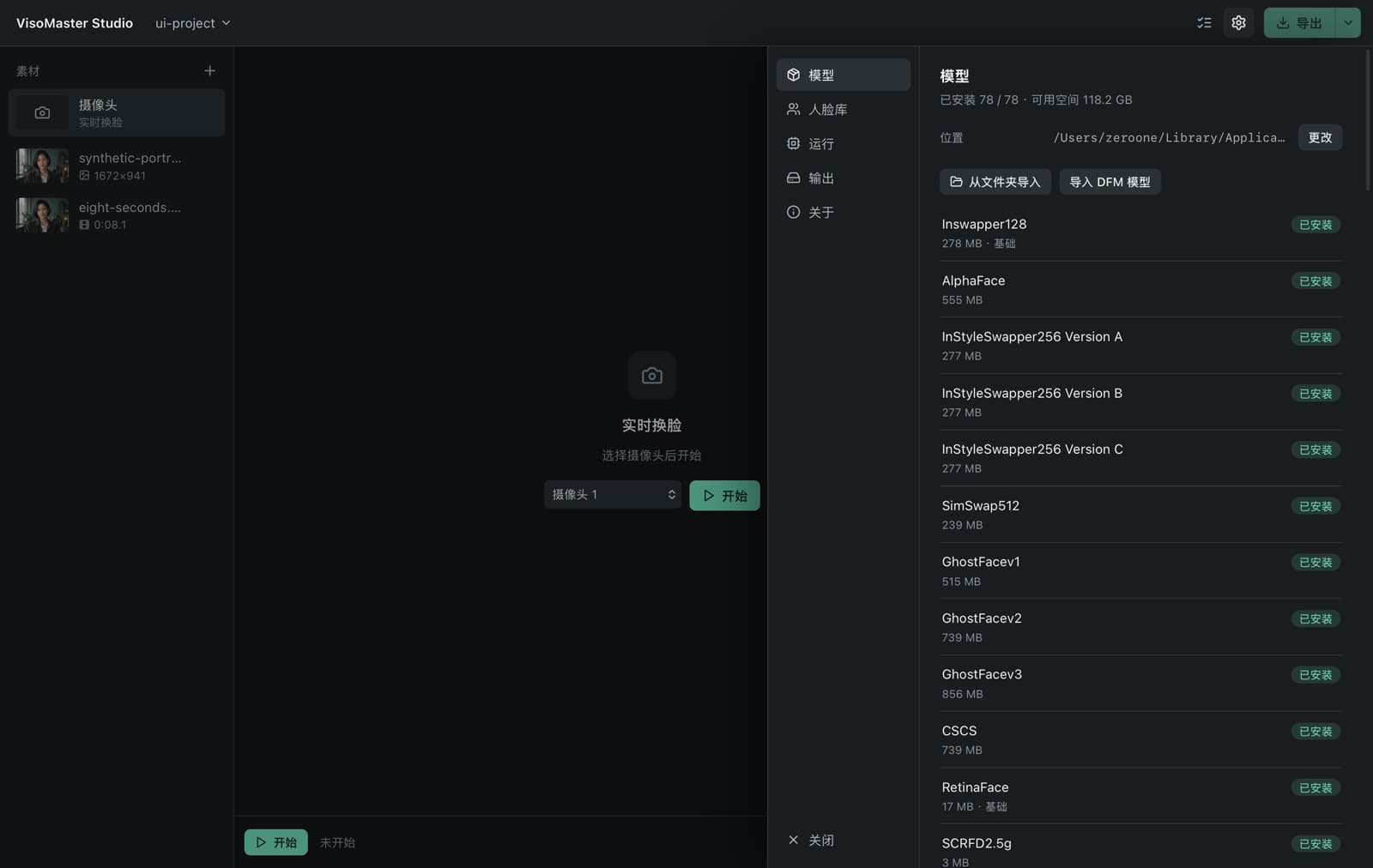
- If you already have model files, for example from a VisoMaster Fusion install, you can import them from that folder in the model settings instead of downloading again.
- In settings you can point the app to a different model folder, for example on an external drive.
Each model keeps its own license; the app downloads them from their official sources rather than shipping them.
How processing runs on Apple Silicon
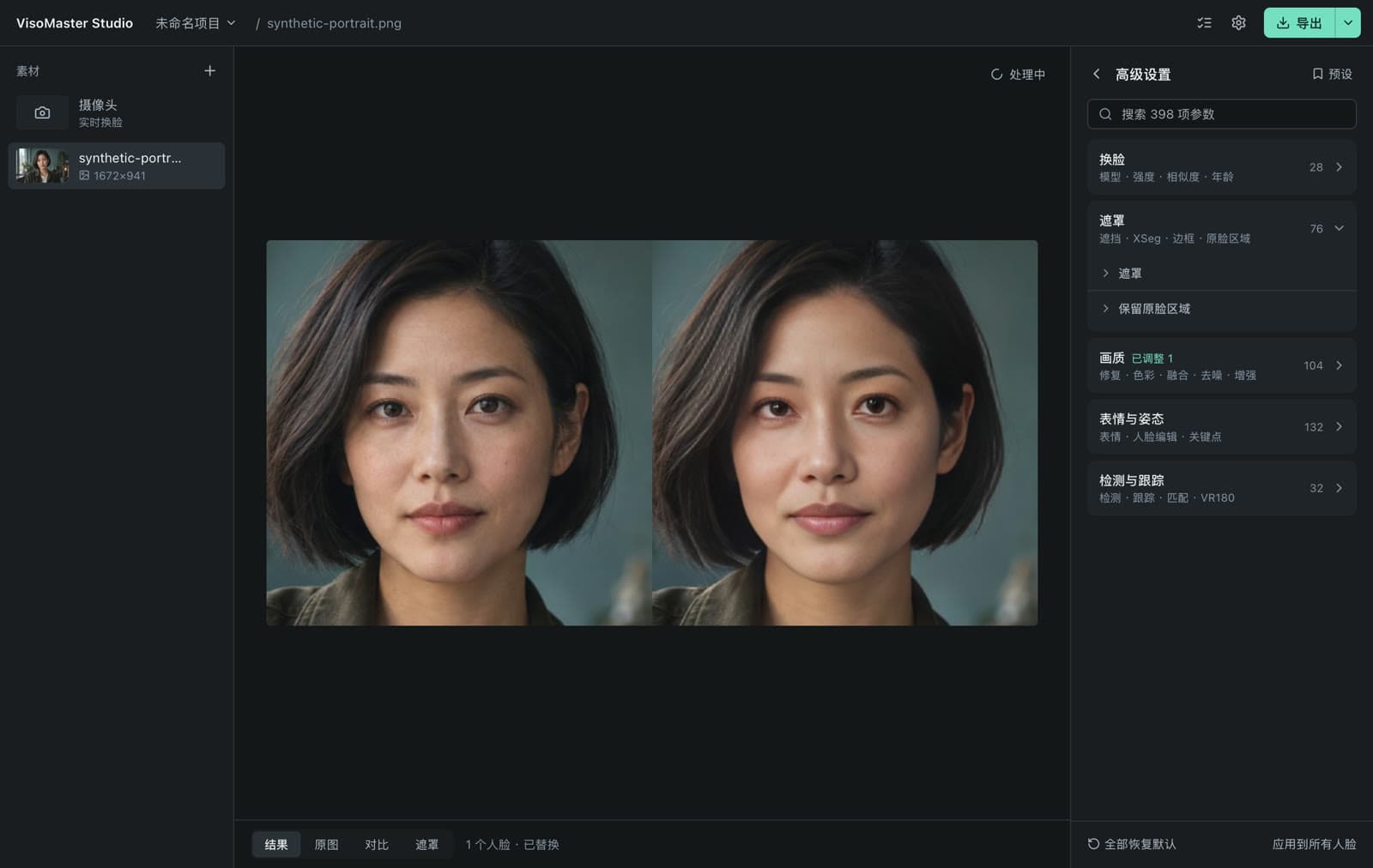
VisoMaster Studio uses the processing code of VisoMaster Fusion, which detects the execution providers your Mac supports and lists them in order. On an Apple Silicon Mac the list is CoreML first, then CPU. You can change the choice in Advanced settings.
With CoreML, ONNX Runtime hands each model to Apple's CoreML framework, which runs it on the Neural Engine or GPU. Pre- and post-processing steps written in PyTorch stay on the CPU. Fusion's code explains why: ONNX Runtime reads tensors directly from memory, and it cannot read Metal (MPS) buffers, so moving those steps to the GPU would add copies rather than save time.
Some models cannot be compiled for CoreML. VQFR v2 is one of them. In that case Studio loads that single model on the CPU, writes a warning to the log, and keeps the rest of the pipeline on CoreML. In upstream Fusion, a model that fails to compile for CoreML fails to load.
Before release, each swap, restoration, enhancement, colorization, detection and mask model listed in the app produced an output in an automated run on an M-series Mac (67 of 67 test cases). That run checked that each model works, not how fast it is, so this guide makes no speed claims.
How processing runs on Intel Macs
On an Intel Mac the provider list is CPU first, then CoreML. That order comes from VisoMaster Fusion's macOS port, which measured CoreML slower than the CPU for the face detector, the recognition model and Inswapper on a Mac with an Intel Core i7-9750H. The reason given in Fusion's documentation is that these models have dynamic input shapes; CoreML needs static shapes for correct output, so it hands those parts back to the CPU and only adds overhead.
The Intel build also uses PyTorch 2.2.2, the last release with Intel macOS builds. CoreML stays selectable in Advanced settings if you want to try it on your machine. Treat this build as a preview: it passed automated checks, but it has had less real-world use than the Apple Silicon build.
A first swap on a Mac
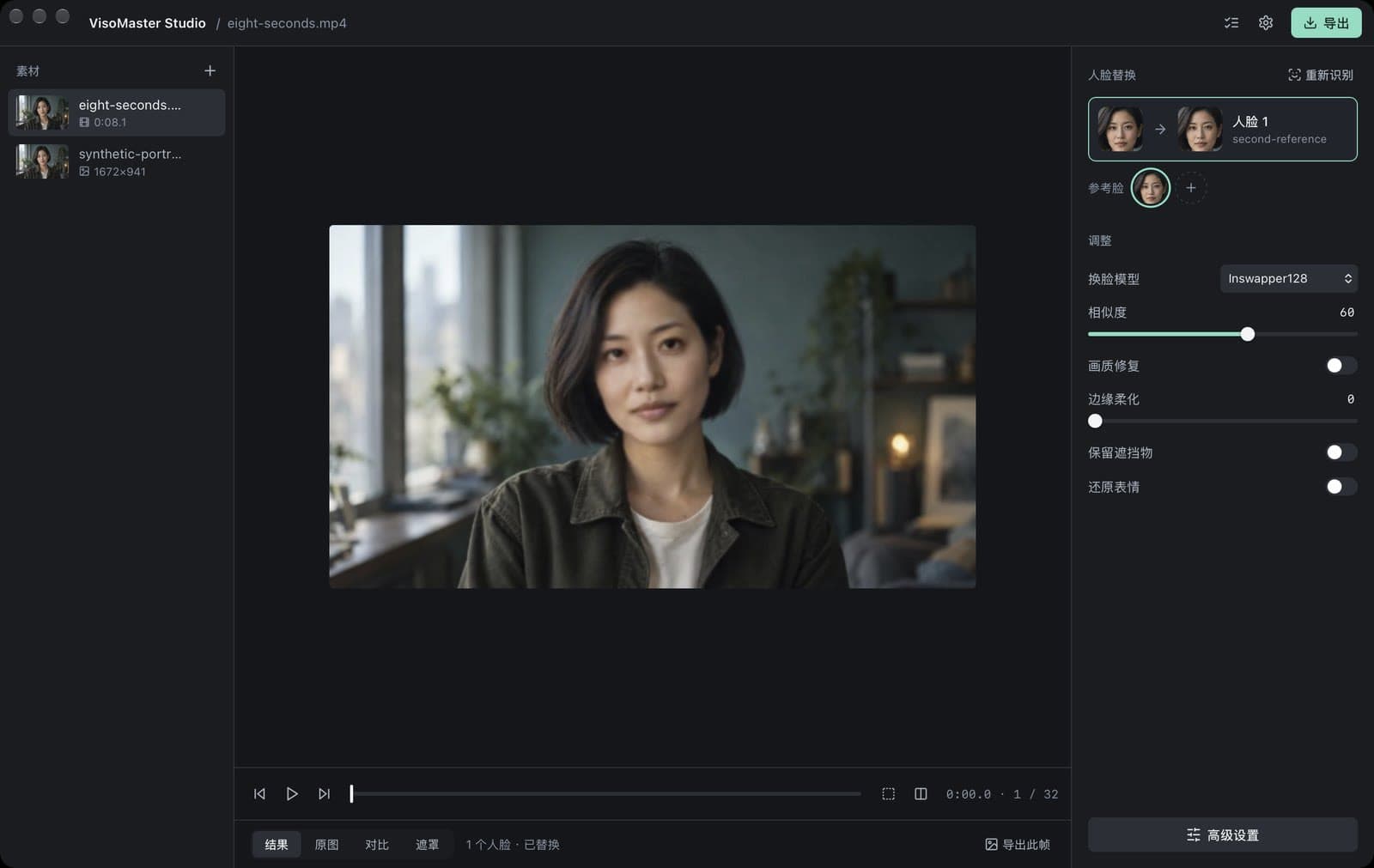
The window is in Chinese for now, so the steps below describe actions rather than button names.
- Add an image or video to the media list on the left. Supported video files include MP4, MOV, M4V, MKV, AVI and WebM.
- Add a reference photo of the face you want to use.
- Select the media. Faces are detected in the current frame and appear on the right. If there is one target face and one reference, they are matched automatically; with several faces, choose which reference goes to which face, and leave the others unassigned to keep them unchanged.
- Preview the result and switch to the compare view to check it against the original.
- Use the six everyday adjustments on the right if needed: swap model, similarity threshold, face restoration with its strength, mask edge softness, keep occluders, and restore expression.
- Export. Images are saved as PNG by default. Videos keep their audio, and on a Mac they are encoded with the software H.264 encoder, because the NVIDIA encoder Fusion uses by default does not exist on macOS.
A face swap replaces the inner face only. Hair and head shape come from the target video.
For more detail on the video workflow, see how to face swap a video locally, and for clips with several people, how to swap multiple faces in a video.
Live mode on a Mac
Live mode processes a webcam feed. The first time you start it, macOS asks for permission to use the camera. Sending the result to a virtual camera on a Mac requires the OBS virtual camera to be installed, because the virtual camera library the app uses works through OBS on macOS. The rest of the app works without it.
Where VisoMaster Studio keeps its files
| What | Location |
|---|---|
| App | /Applications/VisoMaster Studio.app |
| Models, settings, presets | ~/Library/Application Support/VisoMasterStudio |
| Exported results (default) | ~/Movies/VisoMaster |
| Log | ~/Library/Logs/com.visomaster.studio/backend.log |
Models and settings live outside the app, so installing a new version keeps them. To remove everything, delete the app and then the Application Support folder. If you report a problem, include the log file; it also records any model that fell back to the CPU.
Consent and acceptable use
Use VisoMaster Studio only with your own face or faces you have clear permission to use. Label synthetic media when you share it and follow the law where you live. The full rules are in the acceptable use policy.
FAQ
Do I need Homebrew, Python or Xcode?
No. The DMG includes the Python runtime and FFmpeg. The only download after installing is the model set, which the app handles itself.
Can I use the Apple Silicon DMG on an Intel Mac, or the other way round?
No. The Apple Silicon DMG does not run on Intel Macs. On an M-series Mac, use the Apple Silicon DMG: the Intel build is set up for CPU processing and has not been tested under Rosetta.
Does it run on macOS 13 or earlier?
No. Both builds require macOS 14 or later. In the Apple Silicon build, for example, the bundled SciPy library itself requires macOS 14.
Is VisoMaster Fusion itself available for the Mac?
Fusion includes a macOS port that you set up from source with Homebrew FFmpeg, a Python environment and a model download script; its documentation says the Apple Silicon path was untested by its authors. VisoMaster Studio packages that processing code as a ready-to-run app. See VisoMaster Fusion explained for how the projects relate.
Download the Mac DMGs at visomaster.studio/download.
Author

Categories
More Posts
VisoMaster vs FaceFusion: Which Local Face Swap Tool?
VisoMaster Studio vs FaceFusion compared on interface, Mac and Windows setup, swap models, restorers, video workflow and hardware support.
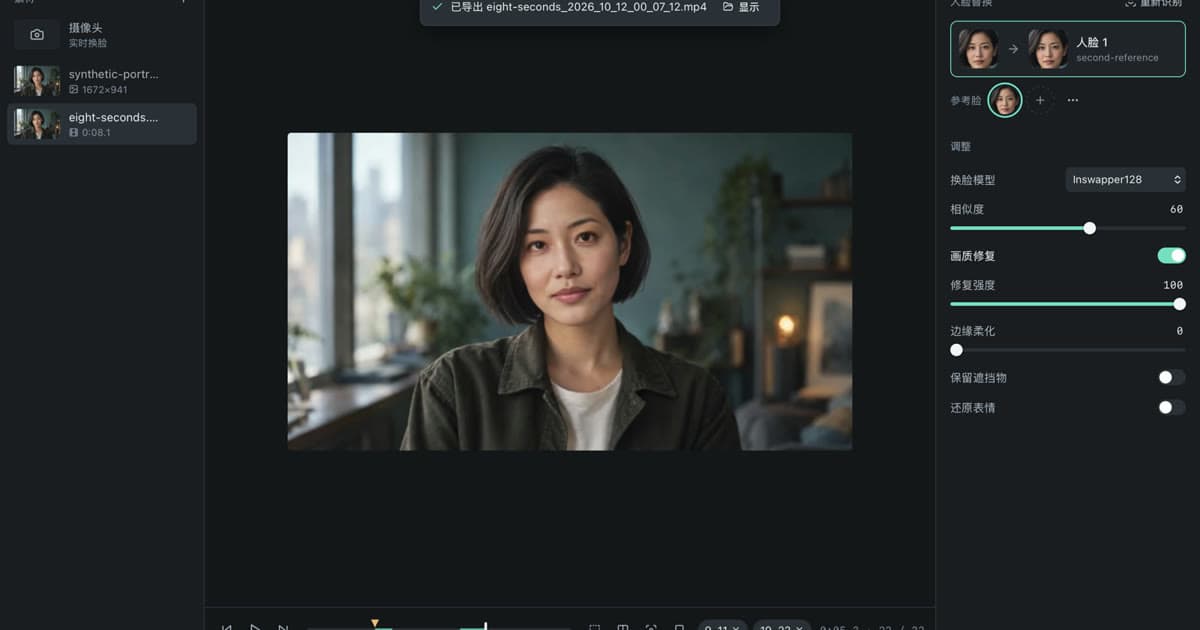
How to Swap Multiple Faces in a Video, Step by Step
Swap several faces in one video with VisoMaster Studio: map a reference to each person, give each face its own settings and leave the others alone.
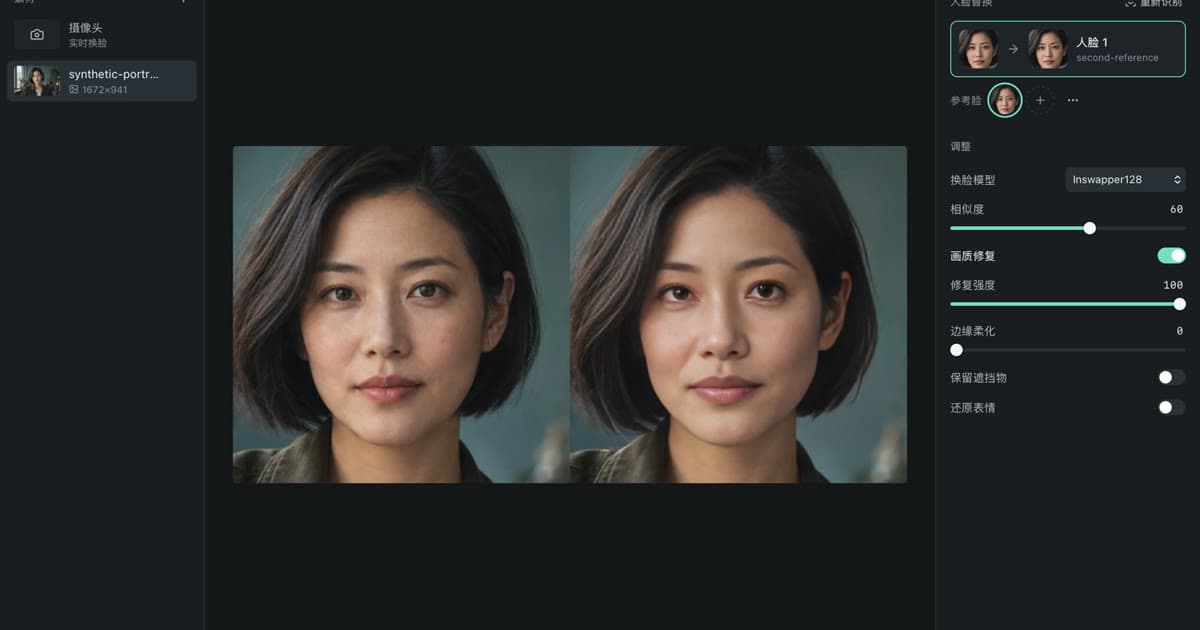
What Is VisoMaster Fusion? VisoMaster, Fusion and Studio
VisoMaster Fusion explained: how it grew from the original VisoMaster, what it adds, and how VisoMaster Studio packages it for Mac and Windows.